Four tools, one workspace
Find answers in your documents, draft storyboards from them, grade finished SCORM courses and add a chatbot to the courses you already have.

The Clarity Box is Windows software for eLearning and learning design teams. Using your own AI account, it finds answers in your documents, drafts storyboards from them, grades finished SCORM courses and adds a chatbot to courses you already have. Your workspace is stored on your own computers.
A policy changes on Monday. Which of your forty courses just went out of date? Nobody knows. So someone opens every one, by hand. Not any more. See everything you have, and know what you don't. Ask, and it finds the policy. It checks every course against it, and shows you exactly where they clash. Rewrite the storyboard in minutes. And when a learner has a question at nine at night, the coach answers, from your policy. Built for government. Everything you save stays inside your organisation, and the AI runs on your own account. Let's build something worth remembering.
The Clarity Box puts the tools a learning designer reaches for into one desktop app. Your source documents, your media and your courses sit in one place, and every tool can use them.
Find answers in your documents, draft storyboards from them, grade finished SCORM courses and add a chatbot to the courses you already have.
Keep your images, video, audio, documents and SCORM packages in one library. It sits outside every project, so the same files are there whichever course you're building.
Generate alt text for your pictures as you upload them, or any time after, using your AI connection. Then find any file by its name, tags or description.
An application you can customise to match your organisation's styling and branding, from the app itself to the work you export.
Add your documents, policies and courses to Clarity Bank once. Create, Review and Chatbot can all work from them.
Ask a question in plain words and get an answer that shows which document it came from. More about Clarity Bank
Keep your images, video, audio, documents and SCORM packages in one library, and generate alt text for your pictures in one click.
Draft a storyboard from your sources, then shape it slide by slide. More about Clarity Create
Grade a finished course and see which screens to fix first. More about Clarity Review
Add a chatbot to a finished course without rebuilding it. More about Clarity Chatbot
Searching folders, copying edits across and clicking through every screen all take time away from the learning itself. The Clarity Box takes on that work, and the design decisions stay with your team.
Each page below walks through one job, step by step, using sample content.
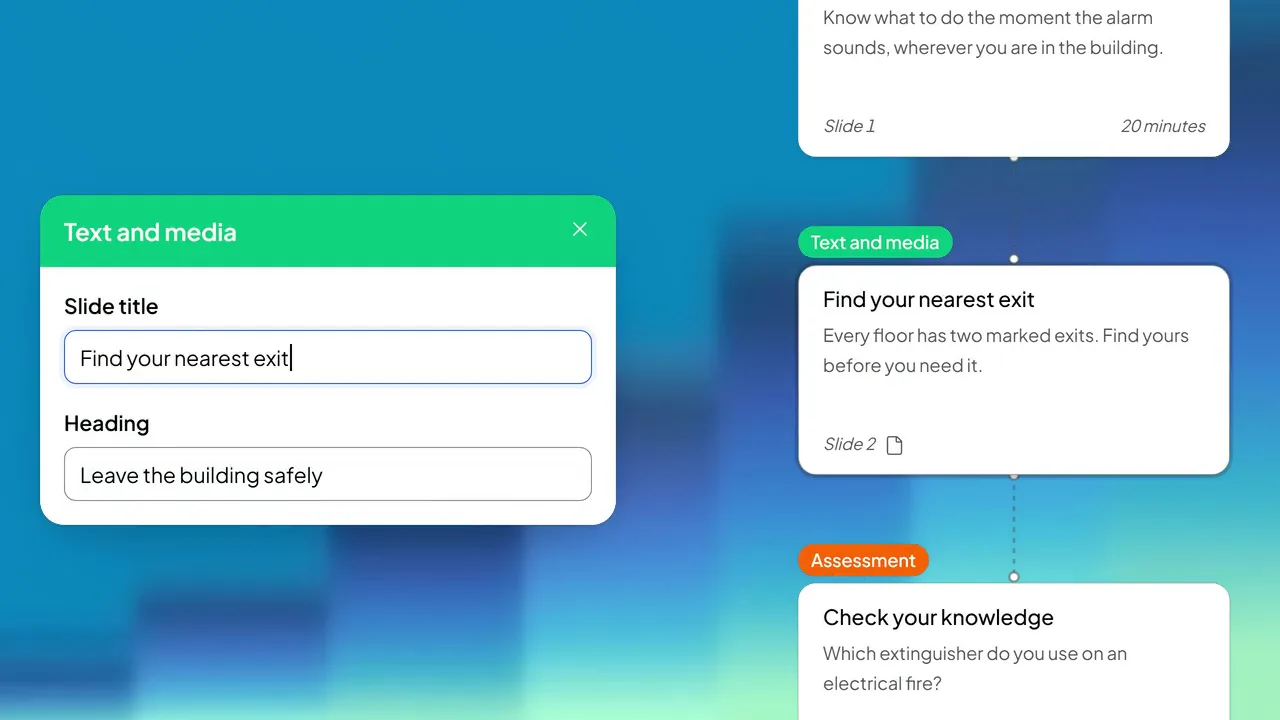
Turn induction documents into a storyboard, then add a chatbot so new starters can ask questions inside the course.
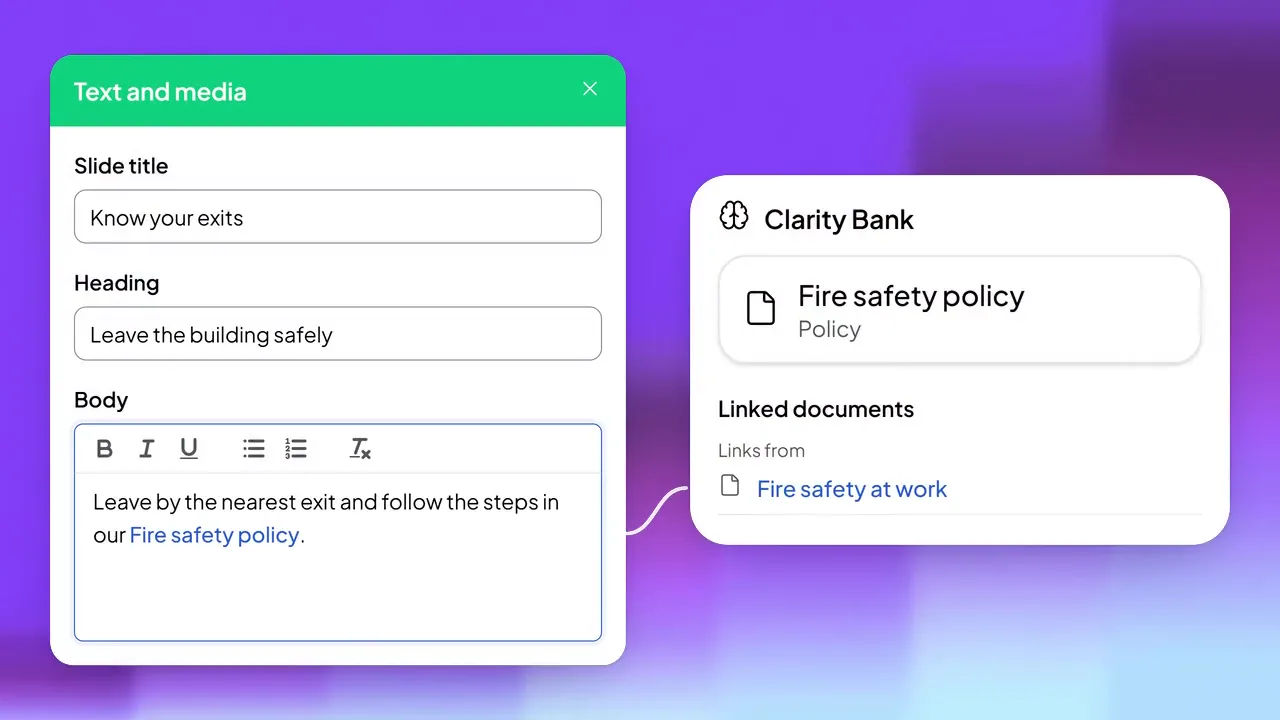
When a policy changes, find the clause, work out which courses it touches, redraft the storyboard and check the rebuilt course against the new wording.
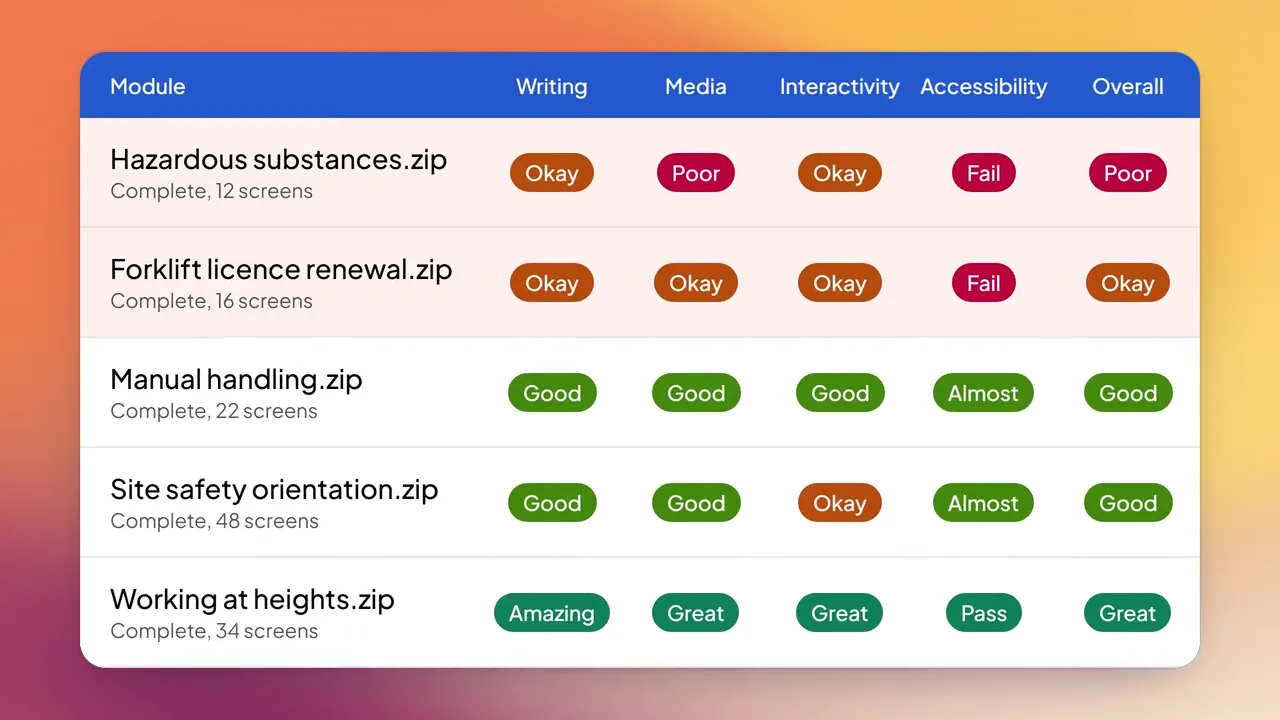
Run the same checks across your finished SCORM courses. See which modules need attention and what to fix first.
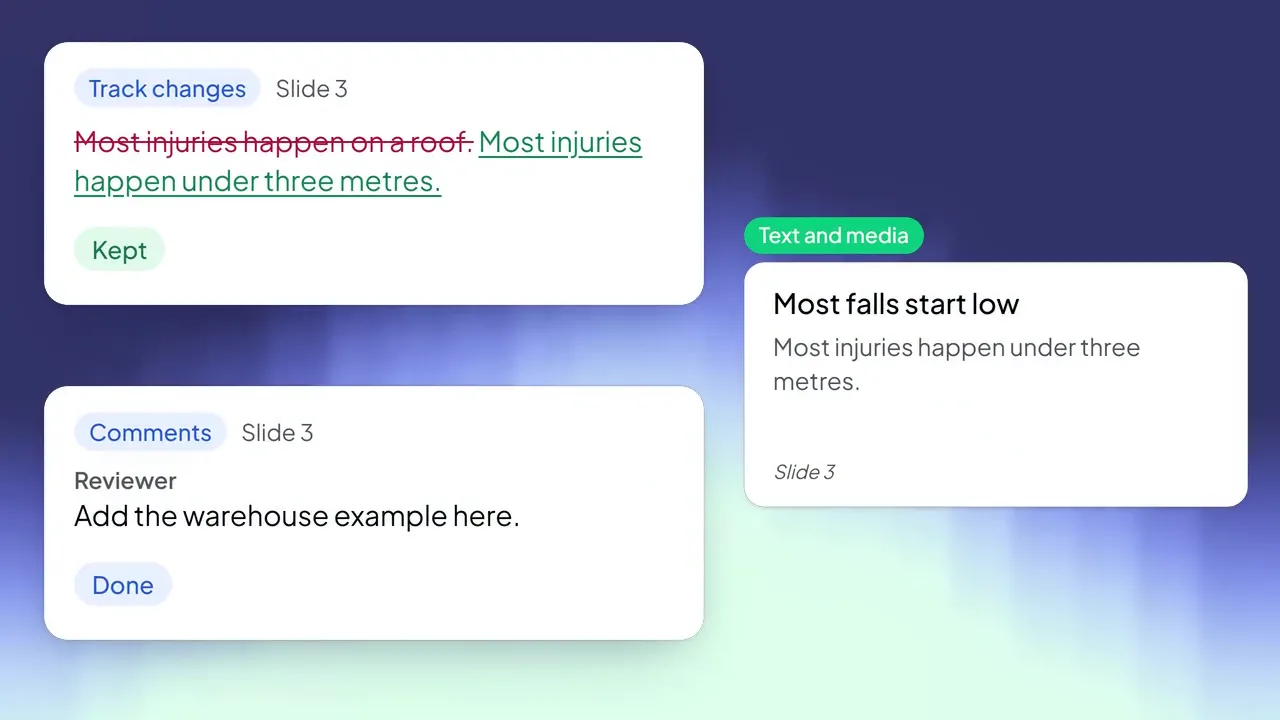
Send subject experts a storyboard in Word. Bring their edits and comments back in, and decide on each one.
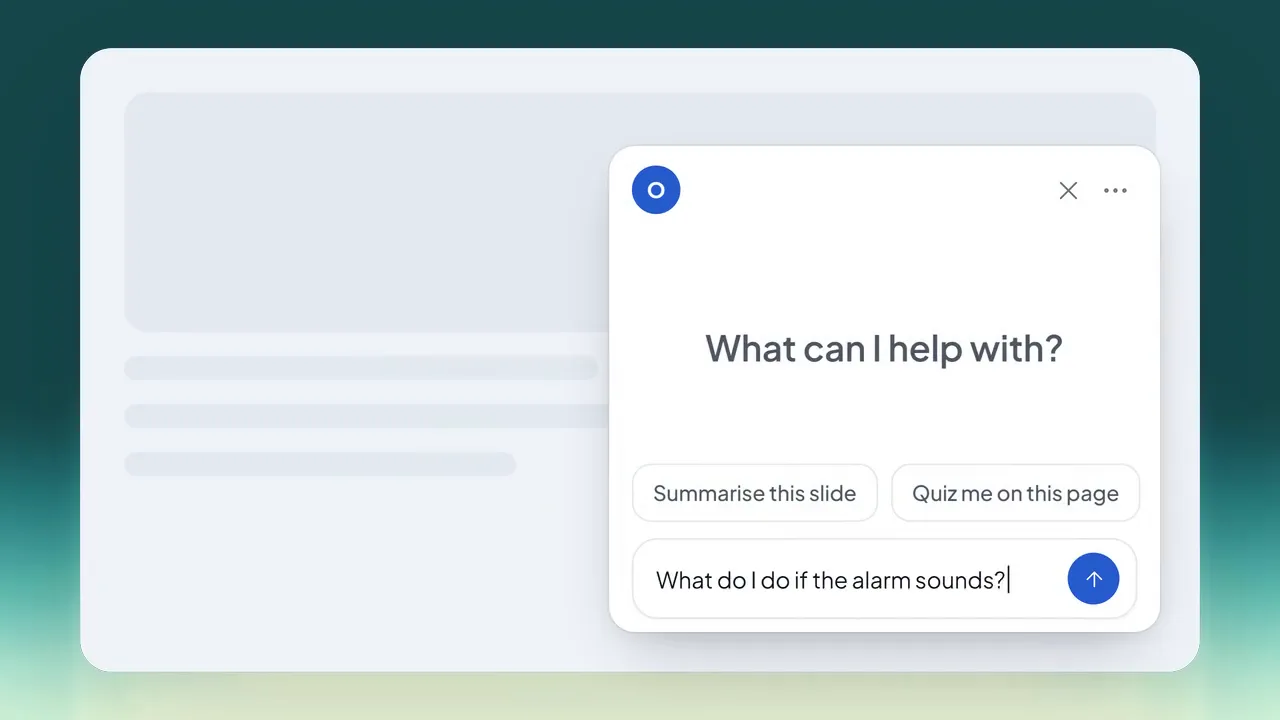
Add a chatbot to courses you already have, so learners can get an answer from the course, a hint or more practice.
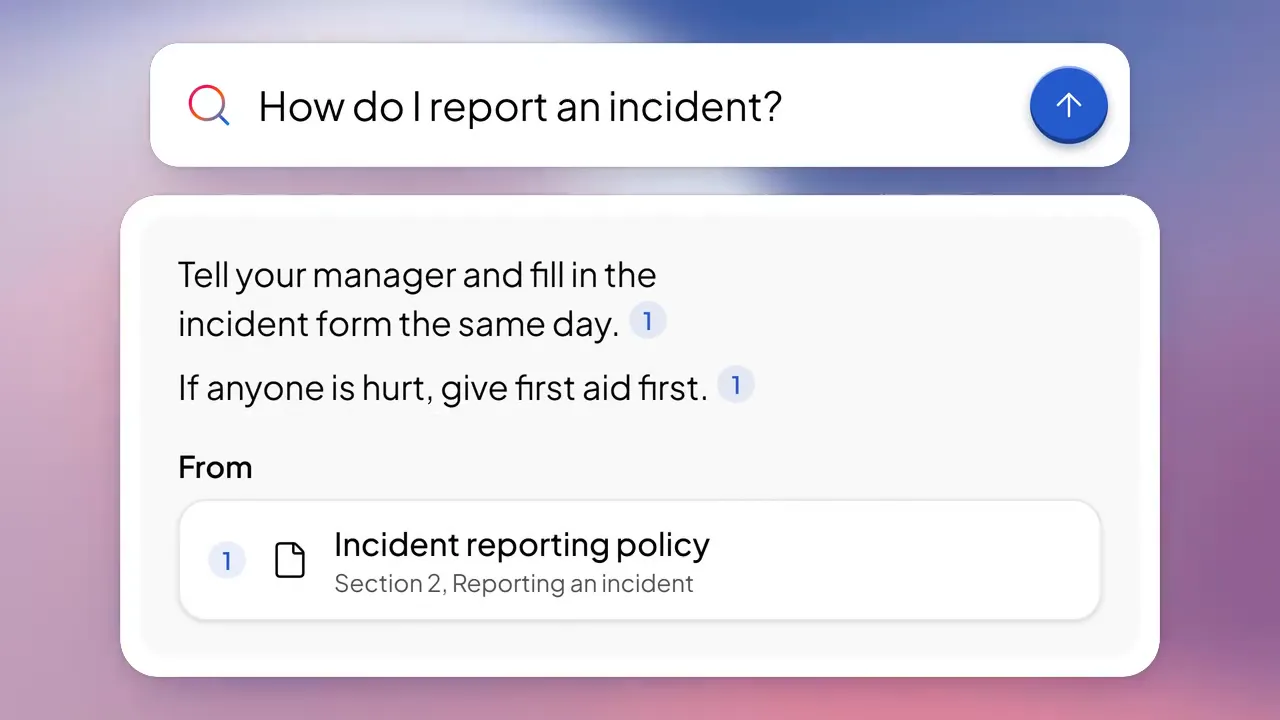
Connect your folders and old courses, plus SharePoint once IT switches it on. Ask a question in plain words and see the sources behind the answer, before you write a slide.
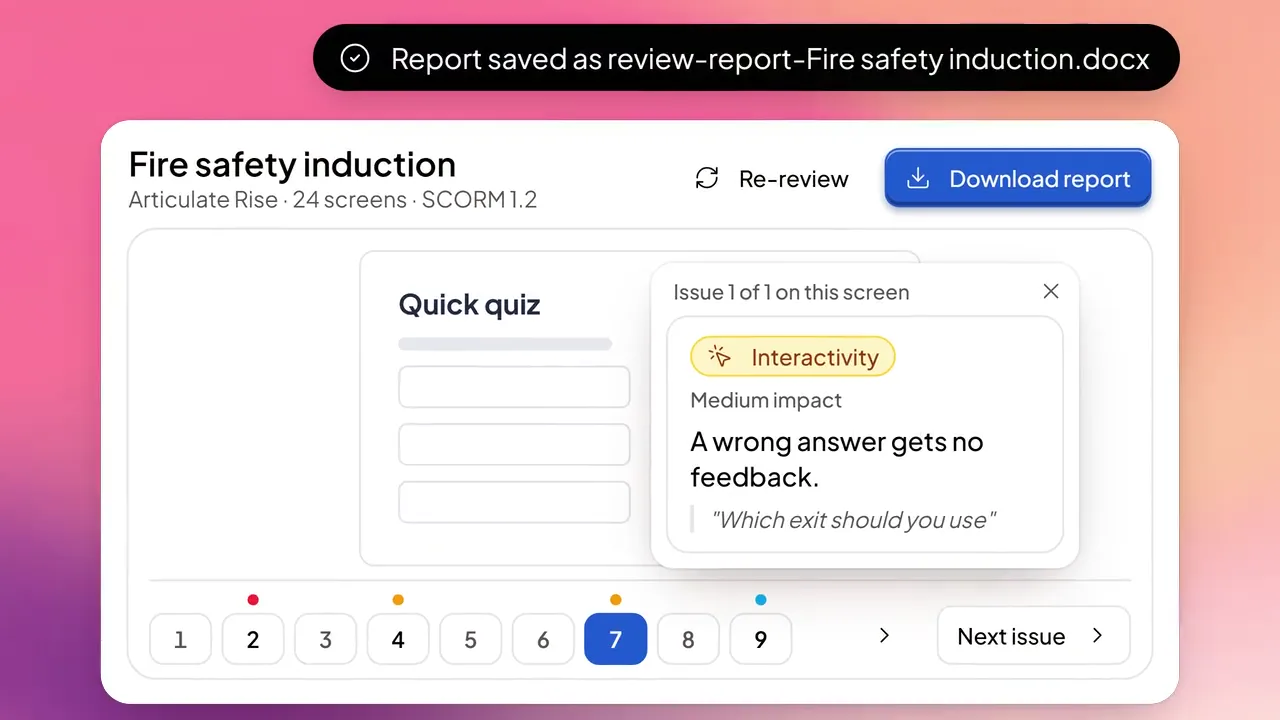
A vendor sends a finished course. Load it, score it, and send back a Word report that names the screen, quotes the text and says the fix.
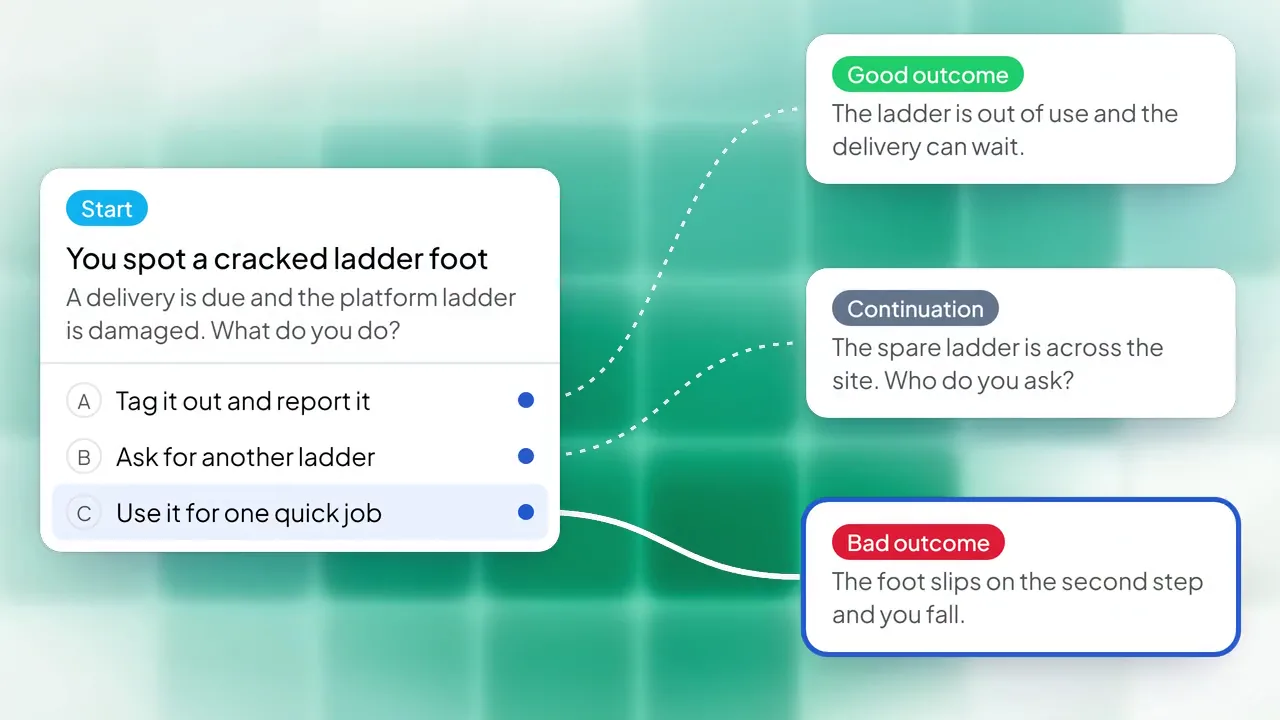
Build branching scenarios where each choice has consequences, and add them to the storyboard or the finished course.
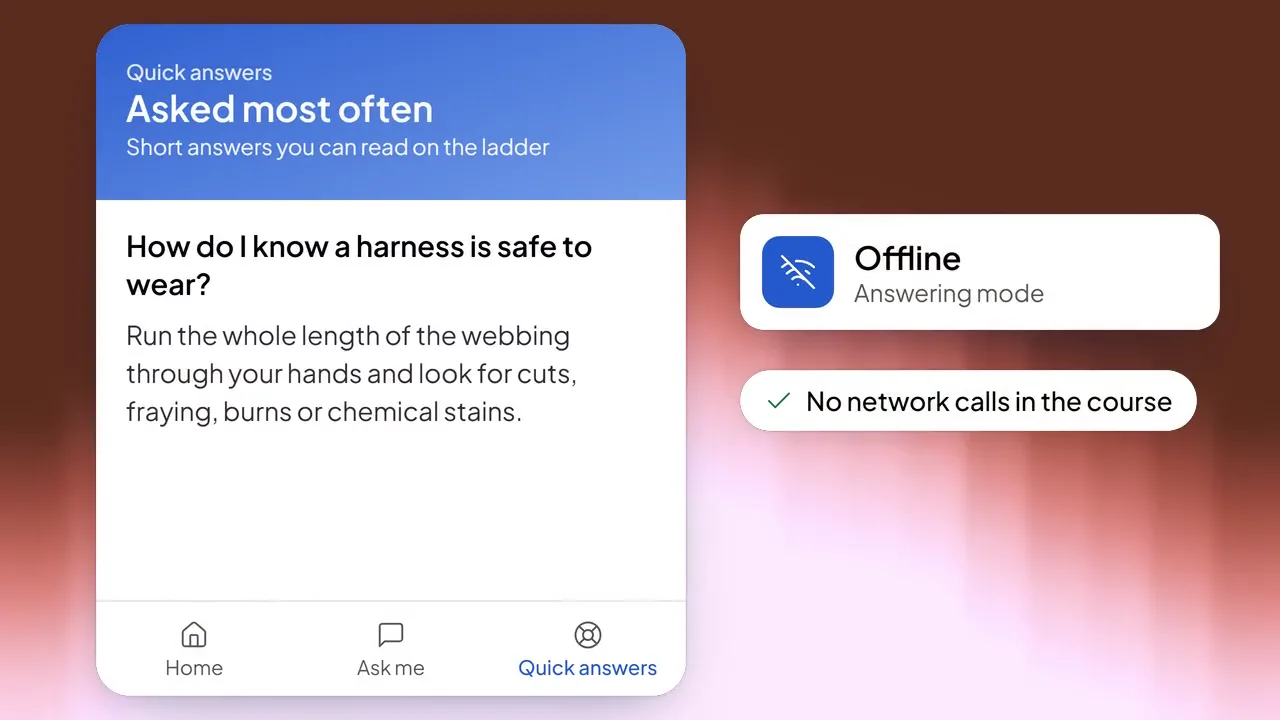
An Offline chatbot answers from FAQs you've approved, a word-for-word course search and scenarios you wrote. The course makes no network calls.
Made in Wellington for New Zealand and Australian government agencies and high security organisations. Your IT and security teams will want to know where work is stored, what leaves the computer and who controls it. Here are the short answers.
Source documents and project files sit in a work folder your organisation chooses. Clarity Writers doesn't host a copy.
AI features send what the task needs to the provider and account your organisation chooses. If you don't use AI, nothing is sent to an AI company.
Reading documents, recognising text in scans and basic text search all work without a connection. AI features need one.
Install on your organisation’s computers and manage access to the work folder.
AI keys are encrypted to your Windows account. Backups leave them out, and you choose where backups are saved.
The app sends no automatic analytics or crash reports. You can share a locally saved report when asking for support.
A few things to know before we talk.
It's Windows desktop software for learning teams. It has four tools. Clarity Bank finds answers in your documents, Clarity Create drafts storyboards, Clarity Review grades finished courses and Clarity Chatbot adds learner support to them.
Learning designers, eLearning developers and the teams around them, in organisations that build training from their own policies and procedures, or buy it in from vendors.
Clarity Bank holds the knowledge every tool can draw on. Create drafts storyboards from it, Review can check courses against it and Chatbot can bring it into a course to support learners.
Partly. Clarity Bank stores your knowledge on your organisation's computers, and reading documents, recognising text in scans and basic text search all work offline. AI answers and search by meaning need a connection to your AI provider.
What you give it for the task. Your organisation chooses whether to use AI and which provider. Create works from your brief, the sources you select and your governance documents. Review uses the course's learner text, your governance and reference documents, and bank passages when that check is on. Bank uses your question and the extracts picked to answer it, and Chatbot uses the course and anything you attach. We can walk your team through this before you decide.
On your organisation's computers, in a work folder you choose. Clarity Writers does not host a copy of your workspace. Your organisation looks after access, backups and retention.
AI features send what the action needs to the provider and account your organisation chooses. Search by meaning, if you turn it on, sends document text too. Microsoft sign in and SharePoint folders contact Microsoft 365. The data handling summary, linked in the footer, has the full list.
No. AI requests go to your own provider on your own account, and the app sends no analytics or crash reports. If you need support, you can choose to share a diagnostics report saved on your computer. It doesn't contain AI keys.
Keys are stored encrypted to the Windows account on the device, and sent to your provider to authorise each request. They are not written into exported courses or included in backups.
In Online mode, the course reaches AI through your organisation's proxy or the learner's own key. It can send course content, bank passages included in the package and recent conversation. Your organisation controls any logging. In Offline mode the course makes no network calls.
Back up everything saves a zip wherever you choose, without keys or Microsoft sign in. Anyone who can open the zip can read the work, so protect it like the original files. Deleted items normally wait in Trash for thirty days. Uninstalling keeps your data unless you tick the option to delete it.
Yes. Clarity Bank reads Word, PDF, text files, saved web pages, transcripts and SCORM courses, and reads scanned documents using text recognition on your computer. Connect folders on your computer, or in SharePoint once IT switches it on. Daily checks pick up changes.
Clarity Review grades published SCORM courses on writing quality, accessibility, interactivity, and media and assets. Accessibility is measured against WCAG 2.1 AA by default. It works best with Articulate Storyline, Articulate Rise and Chameleon Creator courses. Each finding names the screen, quotes the content and gives a fix, and you can share the results as a Word report.
Book a demo. Tell us about your learning work and your source material, and we'll walk you through the tools and help you work out whether they suit your team.